Storeify Store Locator · User guide
Set up your Google Maps API key
Store Locator shows your locations on a Google map, finds addresses and suggests addresses while customers type. This guide explains which Google services your key needs, how to set it up and check it in the app, and what to do when Google Maps shows a warning.
Before you begin: you need access to the app in your Shopify admin and a Google account that can create projects and add billing in Google Cloud.
October 27, 2026 update. The app now needs three Google APIs instead of five: Maps JavaScript API, Geocoding API and Places API (New). Geolocation API and Street View Static API are no longer needed. A new Check API key button tests your key, address suggestions work with keys created after March 2025, directions open in Google Maps, and the optional Google Map ID setting was added.
How the store locator uses your Google key
Your key is the Google map API key in Settings › General. Google uses it to show the map and to bill the map usage to your own Google Cloud project.
- Shared key: a new install starts with a key shared by many stores, so the map works right away. Shared keys can hit Google’s limits on busy days, so create your own key for a stable store locator.
- Your locations’ coordinates: when you add or edit a location with Find coordinates from the address turned on, the app looks up the coordinates itself. It tries your key first and falls back to its own location service, so this keeps working even if your key only allows your store’s websites.
Set up your own key
Follow these five steps once. You can keep using the shared key until you finish.
Create a Google Cloud project
- Open the Google Cloud console and sign in.
- Create a project for your store, or select an existing one.
Turn on billing
- In the Google Cloud console, open Billing.
- Link a billing account to the project, or create one.
Turn on the three APIs
- Open APIs & Services › Library.
- Search for and enable each API:
Create the key
- Open APIs & Services › Credentials.
- Click Create credentials, then API key.
- Copy the key, then limit it as described in Limit where your key can be used.
Add the key to the app and check it
- In the app, open Settings › General.
- Paste the key into Google map API key.
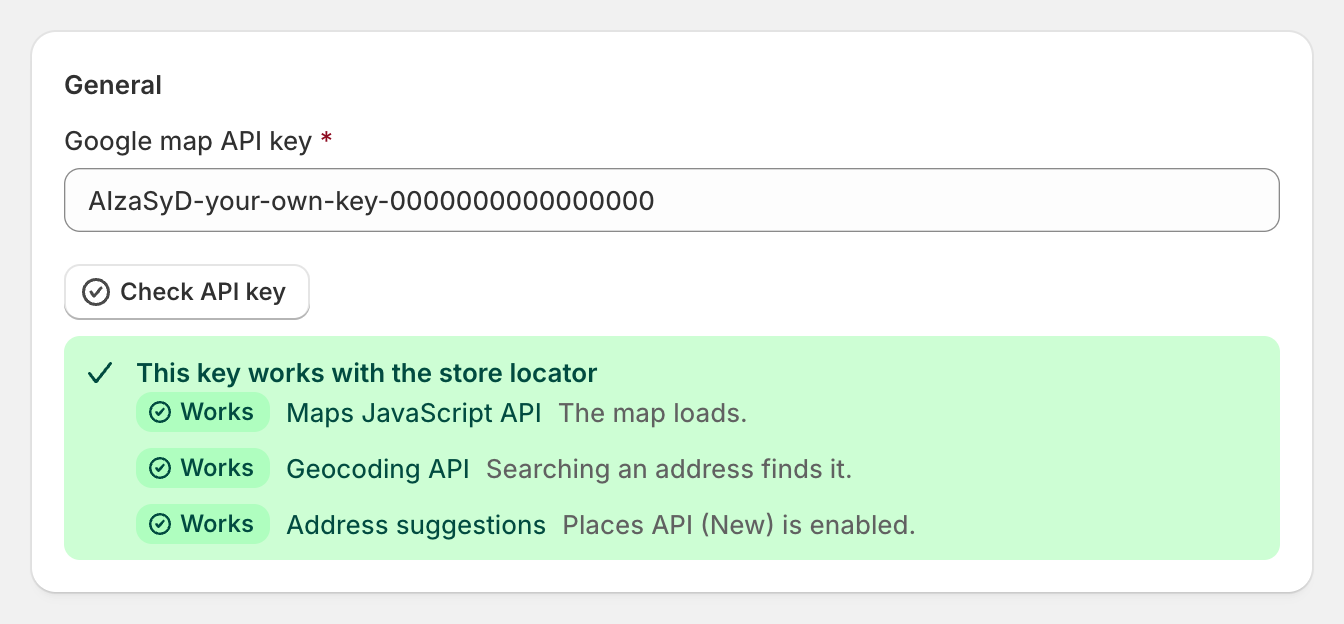
- Click Check API key and read the result (see Check your key).
- Save the settings.
Expected result: Check API key shows This key works with the store locator, and the map on your store locator page loads.
Limit where your key can be used
Your key is visible in your store’s pages, so limit it to your own websites. Otherwise anyone could use it on their site and you would pay for it.
- Open APIs & Services › Credentials and click your key.
- Under Application restrictions, choose Websites.
- Add one line for each address your store uses:
- your Shopify address, for example
https://your-store.myshopify.com/* - each of your own domains, including every market or language domain, for example
https://www.your-store.com/* https://sl.storeify.app/*. This lets the app’s pages use your key: the map preview when you add or edit a location, the Analytics map and Check API key.
- your Shopify address, for example
- Optional: under API restrictions, choose Restrict key and select Maps JavaScript API, Geocoding API and Places API (New). If your key also uses the older Places API, select it too.
- Save. Changes can take a few minutes to apply.
Left out sl.storeify.app? Your store locator still works on your store, but Check API key shows This key can’t be checked from here and map previews inside the app don’t load.
Check your key in the app
Check API key (in Settings › General, under the key) loads Google Maps with the key in the field and tries the map, the address search and the address suggestions. It checks the key you typed, even before you save.
| Result | What it means | What to do |
|---|---|---|
| This key works with the store locator | Map, address search and address suggestions all work | Nothing |
| This key works with the store locator, and Address suggestions says it uses the older Places API | Everything works. Suggestions use Google’s older Places API | Turn on Places API (New) when you can (Google is phasing out the older one) |
| Some features need another API turned on | The map works, but address search or suggestions don’t | Click the link next to each Not working line and enable that API |
| The map can’t load with this key | Google refused the key. The reason is shown on the line | Follow the link: check the key in Credentials, enable Maps JavaScript API, or Enable billing |
| This key can’t be checked from here | The key only allows your store’s websites | Add https://sl.storeify.app/* to the key’s websites, or ignore it if your store locator works on your store |
| Google Maps didn’t answer | No reply within 30 seconds | Check your connection and the key, then try again |
If the field still holds the shared key, the result ends with a reminder to create your own key.
Address suggestions on your store
While a customer types an address in the store locator’s search field, a list of matching addresses appears under the field. Choosing one fills the field and searches for nearby locations, the same as pressing Search.
- The suggestions use Places API (New). If your key doesn’t have it but has the older Places API, the app uses that one automatically.
- If your key has neither, customers don’t see suggestions, but searching still works: they type the address and press Enter or Search.
- If you pick a country in Priority search in (in Settings), suggestions are limited to that country too.
- The list shows “Powered by Google”, as Google requires.
Directions
Directions open Google Maps in a new tab, with your location as the destination. On location pages that let customers enter a starting point and travel mode, both are passed to Google Maps. Directions don’t use your API key, so they work whichever APIs you turned on.
Map style and Google Map ID
You can style the map in two ways.
| Setting | Where | What it does | Default |
|---|---|---|---|
| Map style | Settings › Appearance | Picks one of the app’s map designs (colors of roads, water, land…) | Standard |
| Google Map ID (optional) | Settings › General | Uses a map you design in Google Cloud console (Map management), and Google’s newer location pins | Empty |
- Leave Google Map ID (optional) empty to use Map style. This is what most stores need.
- With a Google Map ID, the map takes its design from Google Cloud and Map style is not used. Google doesn’t allow both on the same map.
- The Map ID must come from the same Google Cloud project as your key. It can only contain letters, numbers, hyphens and underscores.
If your key was set up before this update
Older guides asked for five APIs, including Places API (the older one). Your key keeps working as it is.
- Keep Maps JavaScript API and Geocoding API on.
- Turn on Places API (New). Google no longer offers the older Places API to projects created after March 2025, and suggests moving to the new one.
- You can turn off Geolocation API and Street View Static API: the app doesn’t use them. Street View on location pages comes from Maps JavaScript API.
- Click Check API key to confirm.
Troubleshooting
| Problem or message | What to check |
|---|---|
| The map is grey or says “This page can’t load Google Maps correctly” | Click Check API key. Check that billing is on, Maps JavaScript API is enabled, and your store’s domains are in the key’s websites (Limit where your key can be used) |
| No address suggestions while typing | Click Check API key; turn on Places API (New). Suggestions start from the second character |
| A search says the address isn’t found | Turn on Geocoding API. Try a fuller address (street, city, country) |
| “You’re calling a legacy API, which is not enabled for your project” | Your key’s project doesn’t have the older Places API. Turn on Places API (New), which the app uses first |
| “As of March 1st, 2025, google.maps.places.Autocomplete / SearchBox is not available to new customers” | Shown by older versions of the app. The current version no longer uses them. Refresh the page; if it still appears, contact us |
| “A Map’s custom map types cannot be set when a mapId is present” | Shown by older versions of the app. If you set a Google Map ID (optional), the map style comes from Google Cloud instead of Map style |
| “Google Maps JavaScript API has been loaded directly without loading=async” | Your store pages no longer show it. It can still appear in the app’s own pages; it only concerns loading speed and needs no action |
| “google.maps.Marker is deprecated” | Information only. Google still supports these pins. With a Google Map ID (optional), the newer pins are used |
RefererNotAllowedMapError | Add the domain shown in the message to the key’s websites |
ApiNotActivatedMapError | Turn on Maps JavaScript API |
InvalidKeyMapError | The key is wrong or was deleted. Copy it again from Credentials |
BillingNotEnabledMapError | Link a billing account to the key’s project |
| The map works on one domain but not on another | Add every domain your store uses, including market and language domains, to the key’s websites |
| Map style has no effect | Clear Google Map ID (optional), save, and refresh your store locator page |
Contacting us? Include your store’s address, the page where the problem happens, and a screenshot of the Check API key result and of the browser console message.
Frequently asked questions
Do I have to create my own key?
No, a shared key works when you install the app. Your own key is recommended: the shared key is used by many stores and can reach Google’s limits.
Will I pay for Google Maps?
Google includes free monthly usage for each service and charges only above it. Billing must be on for the key to work. See Google Maps Platform pricing.
My key was created years ago. Do I need a new one?
No. Turn on Places API (New) for the same key (see If your key was set up before this update) and click Check API key.
Why does Check API key say the key can’t be checked?
Your key only allows your store’s websites, and the check runs on the app’s website. Add https://sl.storeify.app/* to the key, or check the map on your store directly.
Do directions cost anything?
No. Directions open Google Maps and don’t use your key.
Checklist
Need help? Use contact us now at the bottom of any page in the app and include the details listed under Troubleshooting.